Easymadeblog: Blog designing
Showing posts with label Blog designing. Show all posts

Friday

How To Add Alexa Toolbar Widget To Your Blogger and Wordpress blog


Heard of it or not? Alexa is an online tool that ranks blogs according to the blog's popularity judging from the number of page views and unique visits a blog receives daily for the past three months.

Alexa is capable of ranking a blog globally and by countries. It makes use your blog traffic to get enough data. Therefore, you might not be served with enough data if your traffic is poor.

Many bloggers who have a good Alexa ranking like to display the ranking result on their blog because it also influences in the good result of the ranking. Here is a fact from Avangate to back up this point:

An excerpt from avangate.com


Besides, it is somehow a pride, if the result is extremely good😜.


However, you are not on this post to read about how Alexa ranking works. You are here to know how to add Alexa toolbar to your blog which I'm going to show you in a moment. To know more about Alexa ranking, read their about page here.

Wait! Wait!! Have you ever checked your ranking on Alexa before?

You can check it in either of these ways:


  • Enter alexa.com/siteinfo/yourdomain.com in your browser address bar, and hit the enter button. 
Change "yourdomain.com" to your real domain. For example, the link to check this blog's Alexa ranking is alexa.com/siteinfo/easymadeblog.com.

OR
  • Visit alexa.com/siteinfo. Then enter your domain as seen below and click on "Find."
Note that Alexa may not provide any information on your blog if you have a very low traffic stats or your blog is still on a subdomain like ".blogspot.com" or ".wordpress.com."

Are you excited with the ranking or just feel like adding a toolbar gadget to your blog? Simply paste the following codes (after proper edit) into anHTMLl widget on your dashboard:

<a href="http://www.alexa.com/siteinfo/easymadeblog.com"><script type="text/javascript" src="http://xslt.alexa.com/site_stats/js/t/a?url=easymadeblog.com"></script></a>

NOTE: Change the easymadeblog.com in red color to your blog address. Then, Follow these simple steps

For Blogspot users:
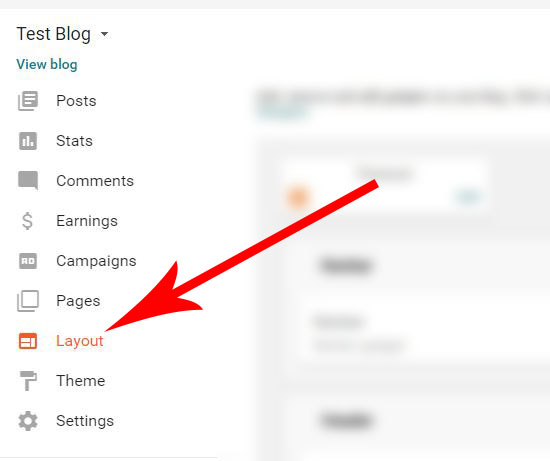
==> Log in to your dashboard and click on "Layout"

==> Click on "Add a widget" where you want to display the widget. However, you can drag and re arrange this later

==> Select a "Html/javascript" widget

==> Paste the edited code above into the content and save.

For Wordpress users:

==> Create a new text widget by selecting Appearance→Widgets from your WordPress Dashboard.

==> Drag the Text Widget over onto your sidebar to activate it.

==> Enter the edited code above and save.

Upon completion, you have successfully added a mini Alexa toolbar to your blog.

Do you really believe in Alexa ranking? Let's share what we think about Alexa ranking in the comment.
Read More »

Monday

How To Delete or Remove A Locked Widget In A Blogger Theme


Have you ever tried to delete a widget (also known as a gadget) in a blogger blog, and found it impossible? There won’t be an option to “remove” the widget as other widgets might have it.

You need not worry anymore as this tutorial will teach you how to delete or remove a locked widget in your blogger template.

It is just that these widgets are locked by default, i.e., you are not permitted to delete the widget.

Meanwhile, some widgets don't make sense to be seen on blogs (like the blogger attribution widget). But you can edit the widget code to be able to delete the widget.

Also, you need to remove some widgets that can cause slow page speed for your blog.

Note: Backup your template before you do anything in your theme code editor.

==> Go to "Themes" and click on "Backup/Restore"
==> Click on "Download" and save as "XML" (default) file.


Ready to delete lock widgets in your blogger theme? Then, carefully follow these steps:


==> Go to "Layout" to locate the widget you want to remove

==> Click on "Edit" link near the widget

==> If truly the widget is locked, there's not going to be a "Remove" button among the options. So, find out the "Widget ID" at the address bar of the window. Note this down and close the window

==> Now go to "Themes" and then click on "Edit theme" button

==> Click on "Jump to widget" and select the widget you noted its ID. For example, the widget I want to remove is “Html4”.

==> Click inside the HTML editor and change the "Lock" value from "True" to "False". Then save your template

==> Go back to "Layout" and edit the widget. You should now see a "Remove" button

==> Remove the widget, and click on "Save arrangements."


That’s all to delete or remove locked widgets in blogger themes
Read More »

Tuesday

3 Simple StepsTo Upload And Centralize Your Blogger Blog Header Logo

Automatic vs custom CSS
When you create your blog new, you would like to upload a logo that describes your blog domain. You would want it to represent the name and, (sometimes) the description of the blog. The blog logo is always placed at the header section of the blog.

After a blog logo has been successfully uploaded on blogger blogs, it automatically fits into the left corner of the header section. But most blogger blogs always have their logo at the center of the header section. You can also centralize your blog logo by adding a custom CSS to your blog.


Steps to upload your logo in blogger blogs


Step 1 >>> Log in to your blogger dashboard and click on layout.

Blogger Layout


Step 2 >>> Click the "edit" link at the bottom right of the header section.

Blogger header edit link


Step 3 >>> Click on "choose file" and select the logo you'd like to upload. Select "Instead of title and description" and save.

upload your logo


With these steps above, your logo will automatically fit into the top left corner of your blog page.

Now, I guess you would need to make the logo appear at the center of your blog page.

To centralize the logo in blogger blogs:


Step 1 >>> Click on themes on your blogger dashboard and select "customize."

Customize your blogger themes


Step 2 >>> Click on" Advanced" settings tab to then select "Add CSS" option.

Add CSS to blogger blogs


Step 3 >>> Copy this code below and paste it into the "Add CSS" box.

#header-inner img {margin: 0 auto !important;} #header-inner {text-align:center !important;}

Then click on "apply to blog" and view your blog. You should notice your title has been centralized.
Paste CSS code


Let me know if you encounter any error, via the comment below:


Read More »