Easymadeblog: How To's
Showing posts with label How To's. Show all posts

Wednesday

Latest Ways To Index Your New Post On Google Within 2 Minutes

Getting google index your post on search appearance can be tough and rough if you do not know how to do it. It takes an SEO expert to index their posts on Google Search within 1 minute of publishing.

Go ask yourself the big question, how can I index my blog posts within 1 minute of posting? Is common for every new blogger and even more common for experienced bloggers who pays deft ears to SEO. But the hacking trick is cheap and simple, you don't need to go further than reading this post to the end.

I will only want the WordPress users to update their ping lists and from there we move on to every other person. Advertisers are ready to pay you a good amount of money if they see that your Google search traffic is high with real human traffic.

Technology confirmed that Google is the top leading online base Tech that's most searched for. By default, every browsing device has Google as its search engines, especially in Nigeria and this may be because either Google is incorporated with these devices or something related.

In order to gain traffic as a blogger or webmaster, you need to tap from their free service. But how can you do this when your articles are not been indexed? The big question can be answered in just a few steps. I will lead you through as we index your recent post and I will make sure that you see it on search immediately.

I know many might have talked about this on their blogs. But I guess this might be the latest hacking trick. A friend once asked me on Facebook "how long does it take for Google to update search results" and I was like a second after publishing.

He was amazed and said to me; I have always formatted my articles well and keep for a good length of not less than 1000 words but yet I never see my articles on search even for two weeks. This is possible even when you generate your sitemap and submitted to Google but today I will help your situation.

How to Index your post on Google Search within 3 minutes of publishing?

I will put this in simple steps and heading formats. I recently interviewed GT Igwe for him to reveal his untold SEO secrets which gave me more insight of SEO. So follow this guide to put your articles on search engines quickly.

1. Generate your URL sitemap

Every blog has a sitemap that can be generated. You can either use an online tool to generate the sitemap (usually yourdomain.com/sitemap.xml). You can type that in your address bar to see if it brings your RSS.

2. Submit Sitemap to Google

Login to your search console webmaster account and head on to add sitemap if you have not done that.
Click "test" before submitting. If you have done this step move on to the other step below. Now, this is what you will be doing most times when you publish new articles on your blog.

Do you want more search traffic to your blog? Why not submit your blog's sitemap to Bing and Yandex webmasters tool. This has helped me pull thousands of visitors ever since I did.

3. Submit your URL to Google Notice Me page

You need to submit your new post URL to google in order to inform them of the new change or development on your blog:

  • Go to https://www.google.com/webmasters/tools/submit-url
  • Sign in with your Google account
  • Paste the URL
  • Prove you are not a robot by entering recaptcha
  • Hit submit.

submit-url-to-google

4. Ping your New post to search engines and directories

Another great work you are going to do here is to ping your articles to search directories and search engines. We are going to use Pingomatic to perform the task:

  • Go to pingomatic.com
  • Enter blog title
  • Paste the URL of your new post
  • Click "select all" to select all directories
  • Hit "Send pings".
how-to-use-pingomatic


And Finally;

5. Fetch as Google

This is another great way to index your posts easily. This is very simple as other steps but with advances steps.


  • Go to search console>>>Crawl>>>Fetch as Google
  • Enter the URL (note: submit only the post link excluding your domain {i.e domain.com/this-review will be submitted as this-review instead of the other}
  • Hit fetch.
After completing these steps, wait for 5 minutes then go back to google.com and search for the keywords and see the miracle.

These are the primary guides to off page SEO by Prosper Noah. Common Reasons Your Content don't get index by Search Engines. They could be reasons why your content was not index after following these steps. This is listed below.


1. Poor Content - If your content isn't up to google standard they won't be indexed. They either may have been copied and pasted which google may have detected or bad English that could not be understood by Google. I recommend you install Grammarly Premium on your computer for easy editing.

2. Wrong Keywords or Keyword stuffing - Don't over surf for keywords but rather let it be in a good range that would not be penalized by Google Panda and Penguin.

3. Sitemap & Robots - If your sitemap is not submitted properly, Google bots won't be able to crawl your site, check to make sure they are in good standard.
Hope you enjoy indexing your post on Google? enjoy Now your turn, let me hear it from your comments.


Author-pic Awogor Matthew is an internet marketer, a freelancer and a content writer at Review blog. He has helped many people grow their websites and blogs through his motivational tutorials. His blog is base on writing reviews on products and services then affiliate marketing. Twitter @awogorm
Read More »

Friday

How To Add Alexa Toolbar Widget To Your Blogger and Wordpress blog


Heard of it or not? Alexa is an online tool that ranks blogs according to the blog's popularity judging from the number of page views and unique visits a blog receives daily for the past three months.

Alexa is capable of ranking a blog globally and by countries. It makes use your blog traffic to get enough data. Therefore, you might not be served with enough data if your traffic is poor.

Many bloggers who have a good Alexa ranking like to display the ranking result on their blog because it also influences in the good result of the ranking. Here is a fact from Avangate to back up this point:

An excerpt from avangate.com


Besides, it is somehow a pride, if the result is extremely good😜.


However, you are not on this post to read about how Alexa ranking works. You are here to know how to add Alexa toolbar to your blog which I'm going to show you in a moment. To know more about Alexa ranking, read their about page here.

Wait! Wait!! Have you ever checked your ranking on Alexa before?

You can check it in either of these ways:


  • Enter alexa.com/siteinfo/yourdomain.com in your browser address bar, and hit the enter button. 
Change "yourdomain.com" to your real domain. For example, the link to check this blog's Alexa ranking is alexa.com/siteinfo/easymadeblog.com.

OR
  • Visit alexa.com/siteinfo. Then enter your domain as seen below and click on "Find."
Note that Alexa may not provide any information on your blog if you have a very low traffic stats or your blog is still on a subdomain like ".blogspot.com" or ".wordpress.com."

Are you excited with the ranking or just feel like adding a toolbar gadget to your blog? Simply paste the following codes (after proper edit) into anHTMLl widget on your dashboard:

<a href="http://www.alexa.com/siteinfo/easymadeblog.com"><script type="text/javascript" src="http://xslt.alexa.com/site_stats/js/t/a?url=easymadeblog.com"></script></a>

NOTE: Change the easymadeblog.com in red color to your blog address. Then, Follow these simple steps

For Blogspot users:
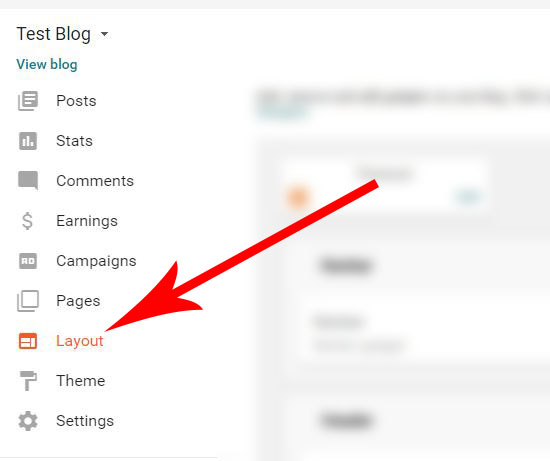
==> Log in to your dashboard and click on "Layout"

==> Click on "Add a widget" where you want to display the widget. However, you can drag and re arrange this later

==> Select a "Html/javascript" widget

==> Paste the edited code above into the content and save.

For Wordpress users:

==> Create a new text widget by selecting Appearance→Widgets from your WordPress Dashboard.

==> Drag the Text Widget over onto your sidebar to activate it.

==> Enter the edited code above and save.

Upon completion, you have successfully added a mini Alexa toolbar to your blog.

Do you really believe in Alexa ranking? Let's share what we think about Alexa ranking in the comment.
Read More »

Thursday

Writing High-quality Blog Post; The Complete Secret That Works

When we talk about writing high-quality content, we mean blog posts that catch readers attention; content that makes readers read over and over again.

Have you ever read a piece of an article and you go back to read the same article several times because you can’t find its kind (quality) anywhere else? Articles of this sort get natural shares, mentions, and therefore increase your backlinks.

I will not be wasting much of your time on this post; I will make sure I go straight to the points. The post may actually seem to be lengthy, but I promise you would enjoy it. Just grab a bottle of Coca-cola and read on.

NOTE: If I use a term that you don't understand, don't hesitate to read these 20 most common blogging terms

You might want to ask, “how do you know a high-quality content?”

It is undeniable! A quality content must possess the following characteristics:


  • It must be unique and original.

It is no more news that duplicate content can be detected by Google bots, hence, affects your SEO. Articles you should be posting should not be articles you copy from one source (on the web) to your blog.

Get used to writing blog posts yourself. Do research and be as original as possible in your writing.

Meanwhile, there are cases when you would need to say the exact word (let’s say quote) from another source only to back up a context, give credits to the source. This way you will not be taken for a thief.


  • It must be free from errors.

Search for a keyword on search engines and go through the articles that come up first. You would hardly (or can never) find articles that have grammar and spelling errors.

This is to show that articles that do well on search engines are not always full of grammars and spelling errors.

Learn to always proofread your content for grammars and spelling errors before you post it on your blog.


  • It must be long enough to be comprehended by readers.

Research has proved that long form content does well than shorter content. Like I described above, long-form content gets readers engrossed especially when it is easy to comprehend.

Not only that writing long-form content is one of the qualities of a quality content, but it also reduces your bounce rate and increases your “average time spent” on your blog.

Get used to writing long but meaningful contents that are easy to be comprehended by readers.

  • The headings, subheadings, and the paragraphs must be well arranged.
Yes! Let your readers be able to differentiate between the headings and the sub headings. Let them find a point in each of your paragraphs.

Besides this, an article that has well-arranged headings, subheadings and paragraphs look more attractive to readers.

  • The points should be stated clearly.
Do not make use of only the paragraphs to state your points. Paragraphs should be meant for point clarification. State your points in a bullet form or number them.

You have different types of readers. Some readers only skim through posts to find the points you’ve got. Skimming and reading through the points first could make them find out what you have got in the paragraphs; thereby, increases the time that readers spend on your blog.

So, that is why it is always better to state your points clearly in a bullet or numbered form.

  • Important words should be emphasised.
If you want your readers to stop by at some parts of your articles while reading the paragraphs, you need to call their attention to the important words and sentences.

Bolden, italicised and underlined words tell readers that you have emphasised something important and that they need to check it out.

It almost works exactly like bulleting and numbering your points. Readers stop by to read what you emphasised, and this could make them read the whole paragraph to know the reason why the words are highlighted.

This is also one of the tricks I use to reduce my bounce rate.

  • Relevant images should be used.
It is always said that a picture explains a thousand words. Not only this, but it also makes readers stay glued to your posts while reading.

Asides from the fact that blog post images reduce bounce rate, related images could also give your readers more explanation to contexts of your blog posts.


  • It must be able to rank well on search engines

It could be obvious, or we may believe that blog posts that possess the qualities as mentioned earlier are the types that rank well on search engines, I won't seize to say that they might not be found on the first pages of search engines if they are not well optimised.

A high-quality blog post must be optimised with well-researched keywords (without stuffing) and must have undergone some on-page SEO as discussed by Prosperity Kenneth in one of his posts - SEO that works.

The characteristics of a high-quality blog post are not limited to these, but we have to stop here and move to the real deal -

How to write a high-quality blog post

writing-high-quality-content

Now that you understand what a high-quality blog post looks like, it is definitely the time to write one for yourself; for your blog.

Where do we start?

It's either you have a topic you want to write on or not. Either of the cases, I will be breaking this down into 7 incredible steps to make it simpler for you:


  • Getting an idea of what to write
  • Finding a perfect topic for the idea
  • Doing research about the topic idea
  •  Finding the best keywords for your blog post
  • Getting started with writing the post
  •  Finding relevant images for the post
  • Rounding up your post
  • SEO for single post

Getting an idea of what to write


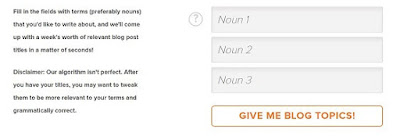
Before you start writing a sentence, you already know what you want to write about. You might have a topic of your own, or you need to find a new topic. If you have a topic, fine. But if you don't have an idea, you can use this free online tool to generate as many post ideas as possible when you input just 3 nouns.

writing quality post- headline generator


You can also check this quick tip to brainstorm post topics (or ideas)

Getting that idea is not enough to start writing, you need to make a perfect title out of the idea. Remember, we are writing a high-quality content which must have a rich and an eye-catching title.

So this leads us to


Finding a perfect topic for the idea


You want to make everything perfect? You need a good headline too. How do you find the perfect headline for your blog post?

I stated 5 incredible ways to start writing blog post headlines for maximum optimisation. You can read them to see how to write perfect post titles.

After you must have gotten a perfect title for the post, you think you are set to go?

No, it remains a little thing to do. Don't forget that you want to write a high-quality blog post that has (at least) the qualities stated above.

Then, what next? 

Doing research about the topic idea


Here, you need to do research about the topic you want to write on. Have these in mind when doing your research:

  • You want to get facts and more enlightenment from authoritative sites that matter to your niche
  • You are not copying someone else's content
  • You are not using an existing title
  • You are writing a genuine content for your blog

How do you do the research?

  • Type your topic idea in the Google search bar
  • Visit authoritative sites ONLY to get your facts (mostly the first results)
  • Check some other sites to see what subtopics can be discussed under the topic
  • Jot down these ideas. Please do not copy!

The next thing is to find best keywords that can take the post ahead of the existing results on Google's first page.

How to find the best keywords for a blog post?


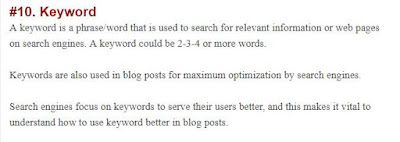
According to this source, a keyword is best defined this way:

publish-high-quality-post

How can you now find the best phrases that search engines love that could take you to the first page? You can make use of Ubbersuggest, Keyword tool, Google keyword planner, Longtailpro and the likes to find a perfect keyword for your blog post.

Jot down these keywords in a notepad, and continue with the next step.

Getting started with writing the post


 This part is what people always regard as the most difficult part. But here on this post, I'm gonna break it down to make it simple for you.

"Every pro bloggers and content writers master what works for them, and so you must master what works for you too." I am gonna share with you the most effective way that makes this part easy for me.

With the facts I gather in the last step, I start writing by firstly outlining my area of discussion in a draft like this:

writing-great-content


I call that "a mini outline". Sometimes, I make a very long outline that contains my sub headings. Then, I build up points and sentences around each of my area of discussion.

Sometimes, I may decide to divide my writing session into 3 or 4 before I publish a single post. Each writing session gives me more and more ideas to add facts and points. I will be like: add a sentence here, add a sentence there. Change this to a subheading, change that to a point. Before I know it, the page is already filled up.

Finding relevant images for better optimisation


Like I discussed above, images in blog posts do many good things for your posts. From readers engagement to a reduction in bounce rate and to maximum optimisation for SEO. So, you are always on the safer side when you add relevant images to your blog post.


Most times, the kind of images that fit your blog post will come to your mind when you are writing the post. But in a case no image idea comes your mind, you can generate a lot of ideas when you search for one or multiples of keywords related to your post on google image search.

writing-quality blog post


Adding these image is not the end of this part. You need to optimise these images too. Here are few optimisations you should not avoid for a single image:

  1. Resize and compress each image before you use them. (Check out these 6 free online tools to compress images)
  2. Save the filename of the image with words related to your focused keyword. For example, I saved one of the images I used above as "writing-quality-blog-posts".
  3. Enter your main keyword in the "alt tag" of each image.
  4. Remove hyperlinks from each of the images unless you are linking the images to a source or another page on your blog. 

Rounding up your post


Wow! You have gradually moved to rounding up your post. You are about to publish a high-quality post on your blog. What's in for this part?

Proofreading and fixing of your keywords you earlier wrote in your notepad.

Read as many times as possible with the aid of tools like Grammarly to correct errors like spellings, grammars, punctuation, etc.

Many content writers I know insert their keywords while they are writing their posts but I personally don't like this idea. Why? Because it mostly results in keyword stuffing.

Keyword stuffing is the excess usage of keywords that make your post looks like you're writing for search engines only (when you are supposed to write for humans).

Google has warned severally to avoid keyword stuffing thereby, it is always safe to avoid anything that could lead to this. And this is why I like my method.

At the same time you are proofreading your content, replace related phrases with your keywords to make it look natural.

Places to insert your keywords:
  1. In your post title, especially at the beginning
  2. In the first paragraph, especially at the beginning
  3. In the last paragraph, especially at the end
  4. Alt tags of all images
  5. The post URL or slug
  6. In search description
  7. Random places in the body of the post (avoid stuffing!)
  8. Tag or label (if necessary)

SEO for your post (single post)


This is where you would want to work on the on-page SEOs like permalink structure, post search description, interlinking and all that. This post can guide you on the simplest SEO practices for beginners.

Done with everything? You can now hit the publish button. You have just published a high-quality blog post.

It doesn't actually end there. The post can just be on your blog without being read by your audience. You need to promote the post too.

So many bloggers use up to 20% of their time on writing while the remaining 80% on promotion. Promote your blog posts to social medias. Get backlinks and mention for the posts. Kim Roach of Buzzblogger compiled a list of 101 ways to promote a new blog post. Make sure you check it out and adopt those ways. All these will increase the chance of being found on the first page-first result on search engines.

Conclusion:

Pro bloggers and content writers were not born to publish high-quality content. They were made by practising a lot. Start writing today, and keep writing till you are independent of official sites and can write very fluently.

Over to you:

I have just told you my secret. Can you tell me your secret too? How do you write high-quality content on your blog? I would like to see it in the comment.
Read More »

Monday

How To Delete or Remove A Locked Widget In A Blogger Theme


Have you ever tried to delete a widget (also known as a gadget) in a blogger blog, and found it impossible? There won’t be an option to “remove” the widget as other widgets might have it.

You need not worry anymore as this tutorial will teach you how to delete or remove a locked widget in your blogger template.

It is just that these widgets are locked by default, i.e., you are not permitted to delete the widget.

Meanwhile, some widgets don't make sense to be seen on blogs (like the blogger attribution widget). But you can edit the widget code to be able to delete the widget.

Also, you need to remove some widgets that can cause slow page speed for your blog.

Note: Backup your template before you do anything in your theme code editor.

==> Go to "Themes" and click on "Backup/Restore"
==> Click on "Download" and save as "XML" (default) file.


Ready to delete lock widgets in your blogger theme? Then, carefully follow these steps:


==> Go to "Layout" to locate the widget you want to remove

==> Click on "Edit" link near the widget

==> If truly the widget is locked, there's not going to be a "Remove" button among the options. So, find out the "Widget ID" at the address bar of the window. Note this down and close the window

==> Now go to "Themes" and then click on "Edit theme" button

==> Click on "Jump to widget" and select the widget you noted its ID. For example, the widget I want to remove is “Html4”.

==> Click inside the HTML editor and change the "Lock" value from "True" to "False". Then save your template

==> Go back to "Layout" and edit the widget. You should now see a "Remove" button

==> Remove the widget, and click on "Save arrangements."


That’s all to delete or remove locked widgets in blogger themes
Read More »

Saturday

How To Add Google Analytic Code To Blogger Blog For Tracking visitors

Let me assume you are a type who like to track blog visitors like I do.

It is very important, and of course, an excellent way of understanding your blog visitors so as to know the kind of content you will be producing on your blog.

Google Analytics, one of the 15 best tools for bloggers that I mentioned in that post, enables users to track blog visitors very quickly when you connect it with your blog.

It makes use of code called "Tracking ID." This ID is what you add to your blog that connects your blog to the Google Analytics.

Adding the Google analytic code will let you track your blog visitors, and it provides you useful information about who are visiting your blog, from where do they found your blog, what they do when they land on your blog, and some other useful information about your blog visitors.

To add the analytic code to your blog, you must have set up an account and register your blog on the Google Analytics website.


If you have a Google analytic account before, skip these steps:


Step 1: Go to analytics.google.com, and click on the "SIGNUP" button

Step 2: Fill in the necessary details including your blog URL, and click on the "Get Tracking ID" button

Step 3: A window will pop up, scroll down and click on "I agree" to accept the Analytics terms and conditions


Track blog visitors


Once these are done,

==> Log in to your Google Analytics account

==> Click on the “Admin” tab on the left menu

==> Click the “Property Settings,” and copy your “Tracking ID” under the “Basic settings.”

==> Now, go to your blogger dashboard >>  “Settings” >> “Other” >> “Google Analytics”

==> Scroll to the bottom, and paste your tracking code into the box. Then save.


Tacking ID for blog visitors

You will now be able to track and know the performance of your blog visitors through the Google Analytic Dashboard very easily.
Read More »

Thursday

Set Robot txt File For Blogger Blog For More Search Traffic

Did you know you can improve your search traffic (organic traffic) by setting a simple, but the best robot txt file for your blog by increasing the number of posts being indexed and blocking some irrelevant pages to appear on Google search engine?

That is, you can change the number of posts you want Google to index, and also stop some certain pages from being indexed by Google.

Exactly!

Robot.txt file is used to inform robots (spiders, crawlers, etc. sent by search engines) about your blog, its structure and to tell whether or not to crawl your blog posts or pages on your blog.

You as a blogger would like individual posts or pages of your site to be indexed and crawled by search engines, while you may prefer other irrelevant pages not to be crawled.

My robot.txt file may be different from your own, depending on choice.

However, for the sake of being a newbie, I don't want you to lay your hands on editing many codes because incorrect use of this code below may result in your blog being ignored by search engines.

So, I have made it easy for you by giving you a simple file you can easily edit with your blog link ONLY.


Below is the method to set up the best robot.txt file you should use:

==> On your blogger dashboard, go to “Settings” >> “Search preference” >> “Crawlers and Indexing”

==> Click the “Edit” button near the “Custom robot.txt” and check the “Yes” checkbox

==> Paste the code below:

User-agent: Mediapartners-GoogleUser-agent: *
Disallow: /search
Allow: /
Sitemap:http://easymadeblog.com/atom.xml?redirect=false&start-index=1&max-results=500
Sitemap:http://easymadeblog.com/atom.xml?redirect=false&start-index=1&max-results=1000

==> Change the “easymadeblog.com” in red ink to your blog address. Then save


The sitemap I used above will let Google search engines index up to 1000 posts on your blog, unlike the default which is just 25 posts.


But in case you don't want a particular post or page to be indexed,

Simply change the "search" in line 3 of the code to the post or page permalink. It should look like this:

User-agent: Mediapartners-GoogleUser-agent: * 
Disallow: /year/month/post-permalink 
Allow: / 
Sitemap:http://easymadeblog.com/atom.xml?redirect=false&start-index=1&max-results=500 
Sitemap:http://easymadeblog.com/atom.xml?redirect=false&start-index=1&max-results=1000

OR

User-agent: Mediapartners-GoogleUser-agent: *
Disallow: /p/page-url.html
Allow: /
Sitemap:http://easymadeblog.com/atom.xml?redirect=false&start-index=1&max-results=500
Sitemap:http://easymadeblog.com/atom.xml?redirect=false&start-index=1&max-results=1000

This is an example of one of my posts below:

http://www.easymadeblog.com/2017/05/make-money-from-blogging.html

And a page on my blog:

http://www.easymadeblog.com/p/write-for-us.html
Let's assume I don't want either of the above to be indexed by Google search engine, I will just copy the highlighted text above and replace with the "search" as it was explained above.

And this way, you're done!


Conclusion:

Use the robot txt file with caution in order not to make your blog being ignored by Google search engines.

Let me know if you would like me to help you set the robot txt file for your blogger blog.
Read More »

Friday

Submit Sitemap To Yandex And Bing Webmaster Tools For More Traffic

When you submit your blog's sitemap to a search engine, you are literarily informing the search engines about your blog and its content, basically the posts. Your blog will be crawled, and your content could be indexed automatically, or you index them manually.

In this post, I will share with you, the step-by-step guide on how you can submit your blog sitemap to Yandex and Bing webmaster tools for more traffic.

But before you go on reading, let's be practical!


  • Check your current average page views, and record it
  • Check your leading traffic source, and record also
  • Also, record your traffic audience.

Having done these, then let go to "submitting your sitemap to Yandex and Bing webmaster tools" wth these easy-made steps.

After you successfully added your sitemap to these two search engines, take another record of your blog and compare. You must see the difference!

Submit sitemap to Yandex


Step 1

Sign up for free on Yandex website here.

Step 2

Enter a valid phone number and click on the "Send code" button. A code will be forwarded to the number that you entered.

Step 3

Enter the code correctly, and hit the "Register" button
register on Yandex


Step 4

After you have successfully registered, click on "Add site" under "my site" section and enter your blog homepage address

add your site on Yandex

Step 5

Then, you now need to verify you are the owner of the website/blog. You will be given four options to choose from. We are going for the "Meta tag" option. So click on this and copy the meta code.

Meta content for Yadex


Step 6

If you are on Blogger, 

  • Sign in to your Blogger dashboard, and click on "themes".
  • Click on "edit themes." Make sure you always backup your themes whenever you want to edit it.
  • Click inside the themes box (otherwise, you won't get your result), and press Ctrl + F on your keyboard.
  • Then, enter <head> and hit "enter"
  • Right below the head section of your themes, enter the meta code you copied.
html <head section

  • Then save your template

If you are on Wordpress

  • Get back to your Wordpress blog. I am assuming that you have Yoast SEO Wordpress plugin. Click on "SEO" and then "General."
  • Paste the Meta code that you copied in step 5
  • Then save changes


Step 7

Go back to Yandex Webmaster tools website and click on "Check." Wait a while, while the tool automatically check for the meta code that you added to your blog in step 6

Check your meta


Step 8

You will have a new page where you enter a username for the website, add a name and click on "Delegate rights."

Delegate rights


Step 9

Now, it's time to add your blog sitemap file to Yandex. Click on "Indexing" at the right menus, and then "sitemap files."

add site map to Yandex


Step 10 - Final Step

Enter your sitemap file, if you have any generated sitemap before. Or just enter your sitemap in this format:
http://www.yourblog.com/sitemap.xml

Change "yourblog.com" to your blog address and click on "Add."

That is all to add a sitemap to Yandex webmasters tool. You can play around other features of the tool.

Now, on to Bing!

Submit your sitemap to Bing


Step 1

Go to bing.com/toolbox/submit-site-url, or click here to register your blog on bing


Step 2

Enter your blog URL in the box and type the characters in the picture in the text box. Then, click on "Submit"

add site to bing
Step 3

After you successfully submit your site, click on "GREAT! SIGN ME UP" button

sign up on bing


Step 4

You will be asked to log in to your Microsoft account. If you don't have a Microsoft account, click on "Create one" button and do the registration. It only takes a few seconds. If you already have a Microsoft account, enter the login details correctly.


Step 5

Add a site. Enter your blog details. Your sitemap is the same thing as the example I gave above. Also, fill the "about you" columns. Then Click on "Add"


Step 6

Site verification. We are using the same method we used to verify the blog in Yandex. So, simply copy the "meta content" and repeat "step 6" in Yandex verification.

Bing meta content


Step 7 - Final Step

Click on the "Verify" button, and that's all.
Verify Bing meta content


Always find time to play around the webmaster dashboards as you are going to understand more things about your blog, like the number of clicks you get when people search for keywords related to your blog posts, and many other things.

As it was easy for you to add your sitemap to these two search engines, so it is to share this post to folks who need this step-by-step guide to add a sitemap to Yandex and Bing webmaster tools.

Let me know via the comment if you face any issues.
Read More »

How To Link Facebook Account Or Page To Twitter, And Vice Versa [updated]


To link a Facebook page to your Twitter account means you want all your Facebook activities to appear on your Twitter tweets automatically. This tip will be very useful for you to get many likes for your facebook page (if you link a Facebook page to your twitter account) or more followers on your personal profile.

If you watch my Twitter account well these days, you should observe some tweets that are automatically tweeted from Facebook. Here is an example:


The link in the image above automatically appears when you write an update that is more than Twitter tweet characters (140 characters). When anyone clicks on the link, it takes him to your Facebook account (or page, if you had linked it to a Facebook page).

With this, you can easily get more likes on your facebook page directly from twitter.

In one of my previous posts, I explained how to create a Facebook fan page. So, in case you would like to link a Facebook page, and you don't have yet, you can do so first. So anytime you post on the Facebook page, it will also appear on Twitter account automatically. This will also be helpful to draw traffics your website/blog.


So, how can you link your Facebook page to your twitter account?


Follow the steps below:

==> Go to www.facebook/Twitter or click here.

A web version of Facebook will open ( even, if you are using Mobile) If you are logged in, you will see the pages you admin and a link (link to twitter) in front of each page.


If it’s your personal profile that you want to link, click the link to twitter in front your Facebook account name.


==> The link you clicked in the previous step will take you to a page where you will authorise the app (if logged in to twitter account) or you can sign in and authorise the app.  You have just linked your facebook account/page to your Twitter account. You can use the edit settings tab to change the default settings.


To reverse the process (to link twitter to facebook):

==> Click on the account image on the twitter home page.


==> Select "settings and privacy".

==> Click on connect to facebook and connect.


==> Then click on Allow to accept permissions.

Read More »

Tuesday

3 Simple StepsTo Upload And Centralize Your Blogger Blog Header Logo

Automatic vs custom CSS
When you create your blog new, you would like to upload a logo that describes your blog domain. You would want it to represent the name and, (sometimes) the description of the blog. The blog logo is always placed at the header section of the blog.

After a blog logo has been successfully uploaded on blogger blogs, it automatically fits into the left corner of the header section. But most blogger blogs always have their logo at the center of the header section. You can also centralize your blog logo by adding a custom CSS to your blog.


Steps to upload your logo in blogger blogs


Step 1 >>> Log in to your blogger dashboard and click on layout.

Blogger Layout


Step 2 >>> Click the "edit" link at the bottom right of the header section.

Blogger header edit link


Step 3 >>> Click on "choose file" and select the logo you'd like to upload. Select "Instead of title and description" and save.

upload your logo


With these steps above, your logo will automatically fit into the top left corner of your blog page.

Now, I guess you would need to make the logo appear at the center of your blog page.

To centralize the logo in blogger blogs:


Step 1 >>> Click on themes on your blogger dashboard and select "customize."

Customize your blogger themes


Step 2 >>> Click on" Advanced" settings tab to then select "Add CSS" option.

Add CSS to blogger blogs


Step 3 >>> Copy this code below and paste it into the "Add CSS" box.

#header-inner img {margin: 0 auto !important;} #header-inner {text-align:center !important;}

Then click on "apply to blog" and view your blog. You should notice your title has been centralized.
Paste CSS code


Let me know if you encounter any error, via the comment below:


Read More »